
***Disclaimer***
To use this wifi you will need to download an app on your personal phone and add your school email account to it. If you do not want to do this, your device will not be able to join our network. This is the only wifi we will allow personal devices to be connected to.
STEP 1: To join your phone to our wifi please open this URL
on your phone You will be taken to a screen that looks like this.
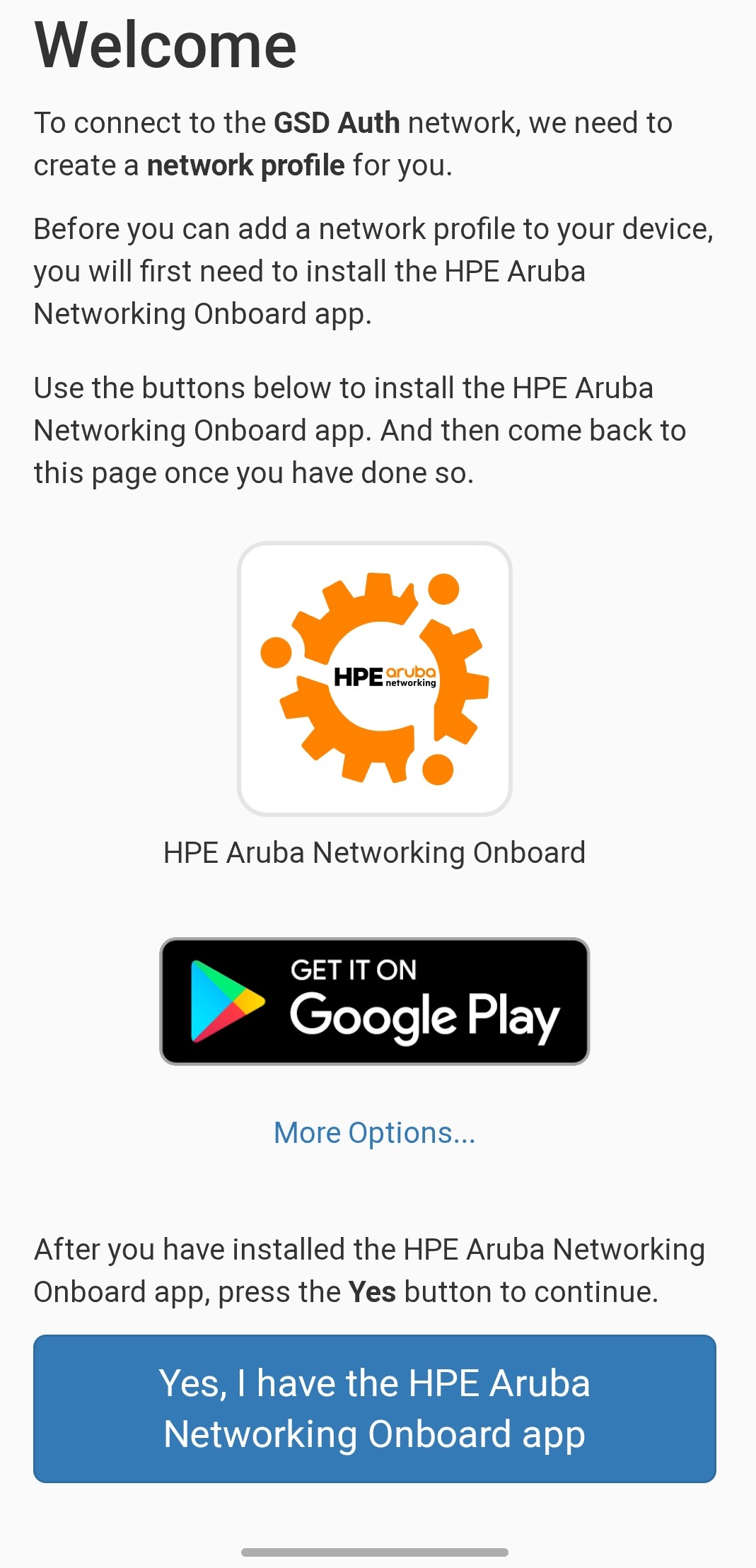
Select "Get it on Google Play" ( Or Download on the App Store if you're an Apple user )
Download the app and return to this page
Select "Yes I have the HPE Aruba Networking Onboard app" button. It will ask you to select an account. You will need to select your Gravette email account.
STEP 2:
After selecting your account you will go to this screen.
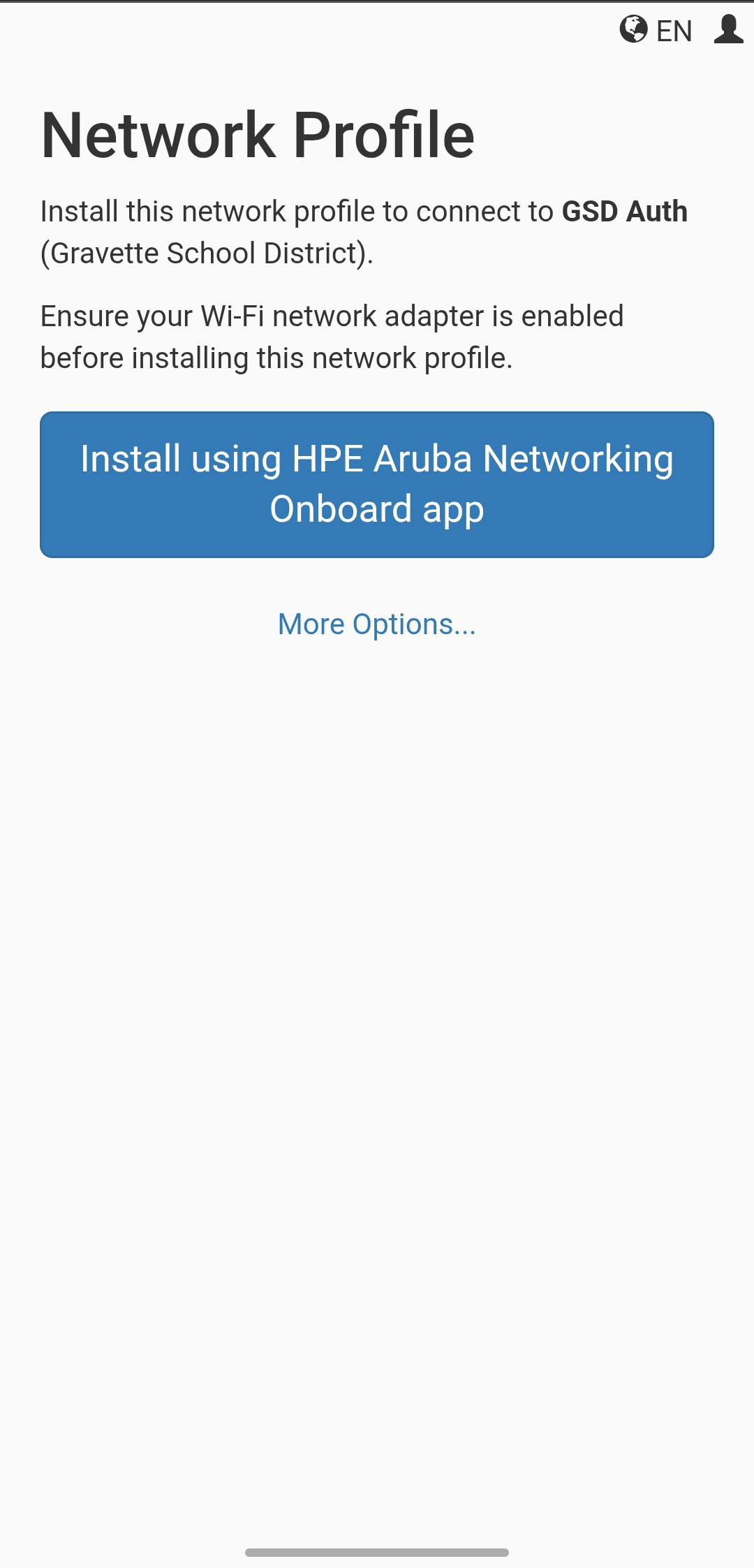
Click the blue button to install. It will open the app you just installed eariler.
STEP 3:
Select the "Set up network profile" button on the bottom
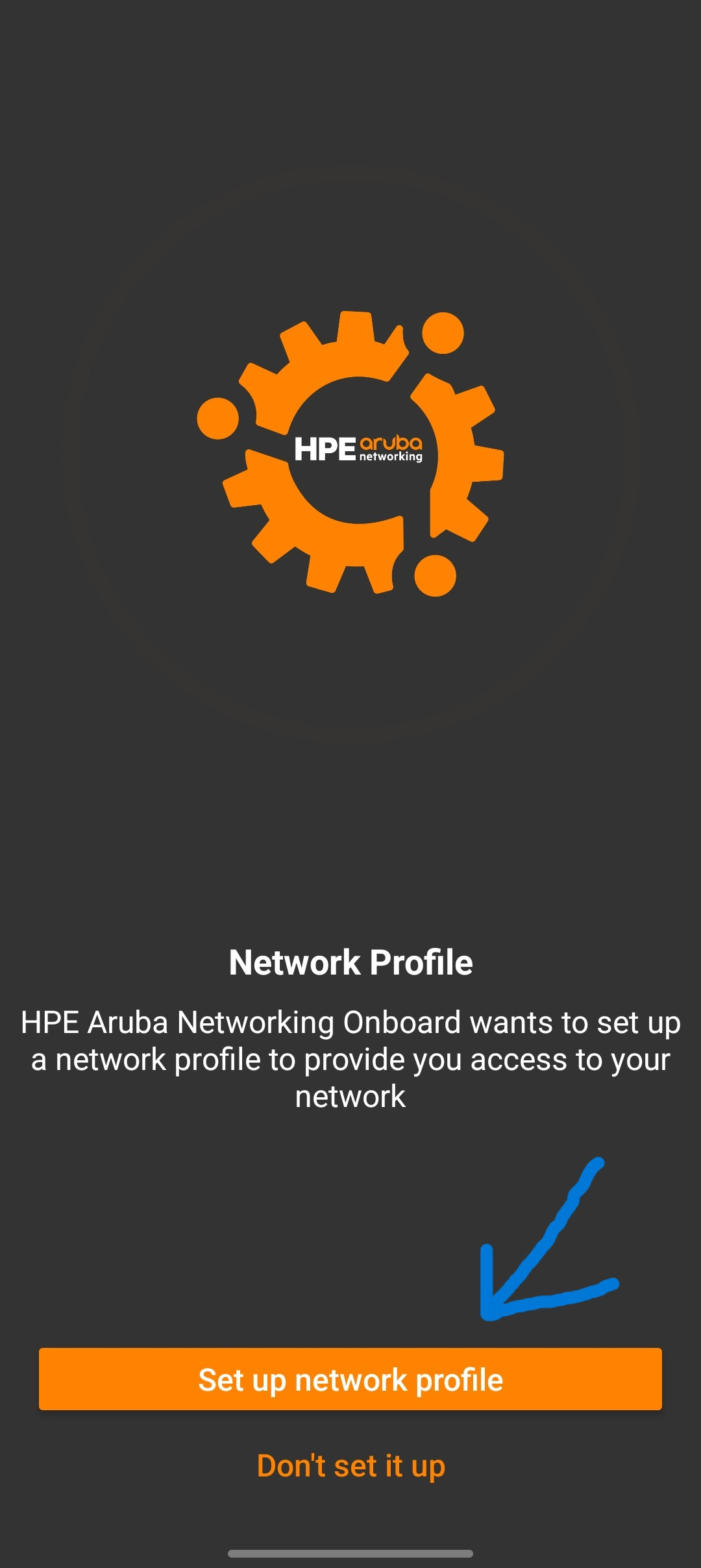
After you select the button it will install your certificate on your phone.
You can now join the "GSD Auth" wifi for 365 days on that device.
***Disclaimer #2***
Apple phones have sometimes crashed after selecting "set up network profile". If this happens return to step 2. It might take a few attempts.